Getting Started
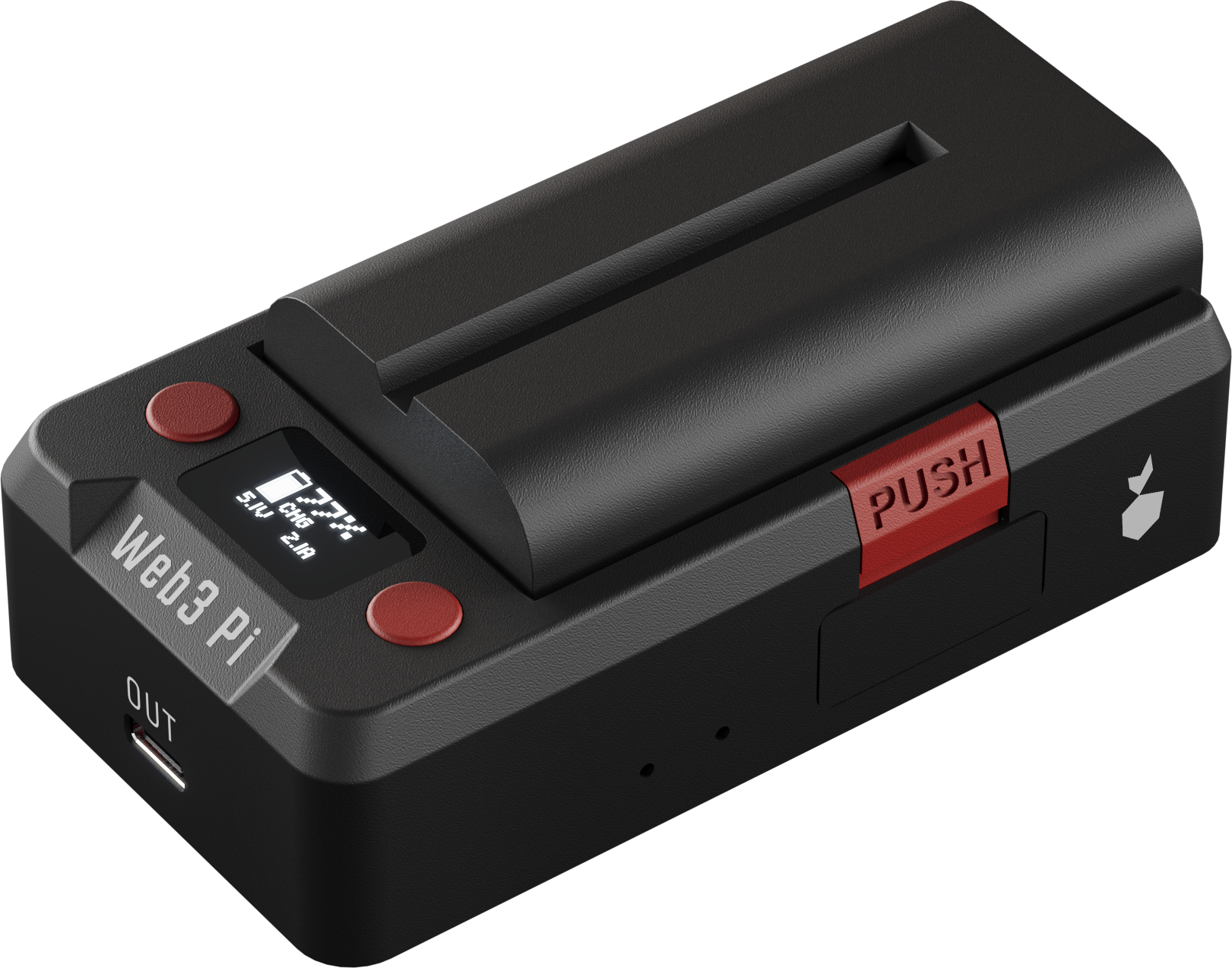
The Web3 Pi UPS sits between your USB-C charger and the Raspberry Pi 5. One cable to the Pi carries both power and data — when the power goes out, your node stays up, and when the battery runs low, it shuts down safely. Setup takes about five minutes.
What You Need
- A Sony NP-F series battery — NP-F570, NP-F770, or NP-F970; bigger number = more capacity and longer runtime. See Battery.
- A USB-C PD charger — 45 W or more recommended so the UPS can run the Pi at full load and charge at the same time (26 W is the absolute minimum). Alternatively, a 12–20 V DC barrel supply.
- An e-marked USB-C cable for the Pi (required for 5 A).
Before You Cable Up
- Never feed power into the OUT port — it is an output only, and back-feeding it can damage the UPS.
- Use quality NP-F packs with built-in protection — virtually all genuine Sony and reputable third-party packs (such as the recommended Newell) have it. Never use raw unprotected cells.
Setup
-
Mount the battery. Set the NP-F pack on the top rail offset by about half its length (the pack engages the rail from roughly its midpoint) and slide it on until the red PUSH latch clicks. To remove it, press PUSH and slide the pack back. The battery is hot-swappable whenever external power is connected.
-
Connect input power. On the rear panel, plug your PD charger into the USB-C IN port (9–20 V, auto-negotiated — nothing to configure), or use the DC barrel jack (12–20 V). If both are connected, the higher voltage wins. The OLED lights up and the battery starts charging automatically.
-
Connect the Raspberry Pi 5. Run one e-marked USB-C cable from OUT to the Pi's power port. The UPS identifies itself as a 27 W supply and negotiates the Pi 5's full 5 V / 5 A profile — full power, no undervoltage warnings — and the Pi boots. The same cable carries USB data for telemetry and safe shutdown.
-
First boot. After a short splash, the Home screen shows the charge percentage, mode, and voltages — see Display & Menu for the full screen tour and settings menu.
-
Optional: install the host service. On Web3 Pi vOS the
w3p-upsservice is preinstalled and already running — verify withw3p-ups statusand skip this step. On other systems (Ubuntu family), install it on the Pi with:curl -fsSL https://raw.githubusercontent.com/Web3-Pi/Web3-Pi-UPS-Service/main/install.sh | sudo bashw3p-upsreads UPS telemetry over the USB link and gracefully shuts the Pi down before the battery runs out — strongly recommended for unattended nodes. Configuration details are in Host Integration. -
Optional: claim your device in the web panel. Units fitted with the LTE-M module report telemetry independently of the Pi — the SIM card and data plan are pre-installed, so there is nothing to insert or configure. Claim yours to get live status, event history, and remote commands from any browser: you'll need the ICCID and the claim token from the setup card in the box, so keep that card. See Web Panel.
Try It
Pull the charger plug — the Pi keeps running from battery without a glitch. Details in Power & Failover; if anything looks off, check Troubleshooting.